Notifications and calls
Where notifications come from
- The phone's companion app. The BattleTime companion app forwards the phone's notifications, as does Gadgetbridge. A notification dismissed on the phone goes from the watch too.
- The phone itself. A few seconds after a phone connects, the watch looks for the phone's own Alert Notification service, as InfiniTime does, and when there is one it subscribes to its new alerts, so they arrive with no app on the phone.
- Any Bluetooth tool. A new alert written to the watch's standard Alert Notification service
shows as a notification, so
bluetoothctl, ITD or Amazfish can send one. - Apps on the watch, which can post their own.
When one arrives
The watch buzzes twice and lights up on a preview of the notification over whatever was open. A bar across the top runs out over 7 seconds, and then the watch goes back to what it was showing. A newer notification starts the bar again.
- Tap the preview to keep it on screen and read it in full.
- Click the side button to go back at once.
Do not disturb keeps the screen dark and the watch still, and the notification is still kept. While a call rings or the phone is ringing the watch to find it, a notification is kept without a buzz or a preview.
The notifications
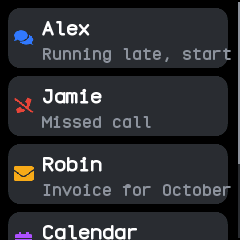
Swipe down on the face, or double click the side button, to pull the notifications down. The watch keeps the five newest, from the phone and from apps, and lists them newest first.
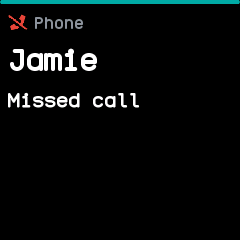
- Each row shows an icon for the kind of notification, then the title and the start of the text.
- Calls, missed calls, texts, chats, news, voicemail, calendar events and alerts each have their own icon, and anything else shows an envelope.
- The icon's colour tells the kind apart too: green for a call, red for a missed call, blue for a text, chat or voicemail, yellow for an email, purple for a calendar event and the theme's accent for the rest. Each stays readable in every theme.
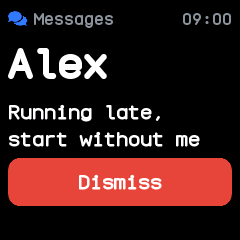
- Tap one to read it in full, with the app it came from and the time; Dismiss removes it.
- Opening the list marks every notification read. Faces show when some are unread.
See the notifications page for each screen.
Calls
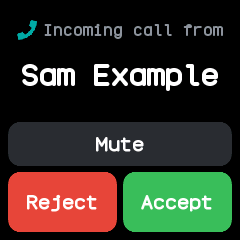
An incoming call opens the call screen, which lights up and rings until you act, the call ends or two minutes pass.
- The screen shows the caller's name, or their number when the phone has none.
- Accept answers, Reject turns the call down, and Mute silences the phone and the watch while leaving the call to ring out. Each goes back to the phone.
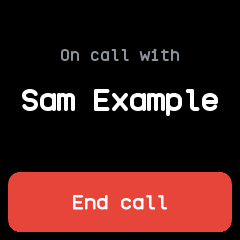
- Once answered, the screen shows who you are on the call with and an End call button.
- When the call ends the watch goes back to what was open. A click of the side button leaves the call screen and stops the watch ringing; the phone still rings.
- After a call, the companion app leaves a notification saying whether it was missed, ignored on the watch or accepted, in place of the phone's own missed call notification.
Answering needs the BattleTime companion app on Android 8 or later, or Gadgetbridge; rejecting needs Android 9. A new alert in the incoming call category, from the phone's own Alert Notification service or a Bluetooth tool, rings the call screen too, though no answer goes back. Without the call app installed, a call buzzes once and lights the screen. Apps that listen for calls hear every call as well.
Do not disturb
The do not disturb tile in quick settings steps through three states, as InfiniTime's does:
- Off.
- Silent: no buzz and no lit screen for notifications, calls or chimes. Alarms and timers still ring, unless Alarms in DND is turned off in Settings.
- Sleep: silent, and only the button wakes the screen; see Sleep mode.
Do not disturb can also be turned on in Settings or from the companion app, and the companion app holds notifications back while the phone's own do not disturb is on.
Vibration
The motor buzzes for notifications, ringing alarms, timers and calls, the hourly chime, and apps that buzz, such as a tap on the remote.