Apps, faces and the store
A BattleTime watch carries no apps of its own. Every app, watch face and the launcher are installed from the companion, which carries every app and face in the BattleTime repository and can fetch more from GitHub. Apps and Watch faces describe each one.
Setting up a new watch
A new watch, or one whose apps were all removed, shows only a help screen. When the companion connects to a watch with no face, the Watch screen says This watch has no face yet.
- Choose Set up the watch.
- Tick the apps to install. The list offers the ones most people keep: the digital face, the launcher, Calculator, Dice, Flashlight, Heart, Notes, 15, Remote, Snake, Steps, Stopwatch and Timer. Everything else waits in the store.
- Choose Install and keep the watch close. It takes a minute or two.
The face and the launcher go first, so the watch shows its face as soon as they land. Swipe up on the face to open the launcher. Setting up also writes the launcher's default groups.
The shared library, which holds the icons and fonts every app uses, comes inside the firmware, so the companion never sends it.
The store
Store on the Watch screen, or Open the store on the Apps screen, lists every app, face and plugin the companion can install, with whether it is on the watch, its size and where it came from. It opens without a watch, so it can be filled before one is connected.
- Install sends an app or face to the watch. The watch checks it and refuses one that would not fit in its memory, saying why.
- Uninstall removes it from the watch, with what it saved.
- Remove from the store takes an entry out of the list. A removed bundled entry comes back with Bring back the bundled entries at the bottom of the screen.
- Add from files adds
.ntappapps and faces and.ntpluginplugins. - Look on GitHub lists the releases of a repository,
BeatLink/BattleTimeunless changed, that carry apps or plugins. Choose one to download it and pick what to add. With a GitHub token in Settings, recent Actions builds are listed too.
An entry added later replaces one with the same id, so adding a newer release and installing again updates the app on the watch. Added files are kept on the device, so installing needs no download.
The app store describes how releases are built and what they carry.
Plugins
A plugin is the companion-side half of a watch app: it carries the app, keeps its settings, and answers it while the watch is connected. Each of BattleTime's own apps has one, and some, such as Alarm, Timer, Steps, Heart and System, show a page of their own; Watch data describes those pages.
Installing a plugin from the store installs its watch app too. The Plugins screen on the Watch screen lists the installed plugins. Choose one to see:
- what it is allowed to do, in words: the messages it may send the watch, the websites it may reach and the watch data it may read;
- Install its app on the watch, to put its app back after it was removed;
- Turn off or Turn on, which stops or starts its logic in the companion;
- Remove, which takes away the plugin and its settings;
- its page, when it has one, and its log.
Install a plugin on the same screen installs a .ntplugin file directly. Plugins run in the
desktop and Android apps, and keep running while the window is closed. Plugins is
the guide to writing one.
The Apps screen
Apps lists what is installed, each with the memory it needs while open and how much the watch allows. Choose an app to:
- Hide from the launcher, or Show in the launcher again. When the watch refuses, it says why.
- Remove it, with everything it saved. Tap twice to confirm.
Install from a file sends a .ntapp image straight to the watch, without adding it to the store.
The launcher
Launcher arranges the watch's launcher, the screen that opens with a swipe up the face. Apps sit in groups: Time, Phone, Communication, Health, Games, Tools, System and Other to start with, each app in the group it declares.
- Style is how the groups show: folders (a list of groups, each opening its apps), sections (one list with a heading for each group), pages (a page per group, swiped left and right) or one plain list.
- View is how a group's apps are drawn: a row each, or a grid of icons.
- Sort puts groups and apps in order of their names, or, set to custom, keeps the order you give them. Only a custom order lets groups and apps move up and down.
- Groups can be added, renamed, given an icon from the watch's icons and removed, and any app moved to another group.
Each change shows on the watch at once. The layout lives on the watch, so every companion sees the same groups. An app installed another way lands in Other until the companion next writes the layout.
Quick apps
A swipe left or right on the watch face opens the next or previous app in its quick-app ring; a step past either end comes back to the face. Without a choice of yours the ring is Steps, Stopwatch, Heart, Weather and Music.
Quick apps shows the ring beside the installed apps that could join it. Add, remove and move apps, then Save; Use the default goes back to the watch's own ring. The watch skips an app in the ring that is not installed.
Temporary apps
A temporary app is sent and opened at once, on top of whatever the watch shows, without being installed. It never appears in the launcher or the app list, saves nothing, and closes when the wearer goes back, when the companion stops it, or when the link drops. The watch keeps its files as a cache, so running the same app again sends only its data.
Temporary apps run from the command line for now:
battletime apps run prompt.ntapp --text text="Lunch now?"    # open an app with a data file
battletime apps run my-app.ntapp --listen                    # stay connected and print what it sends
battletime apps stop                                          # close it
battletime apps forget                                        # close it and delete every cached one
battletime ask "Lunch now?" --timeout 30                      # yes or no from the wearer
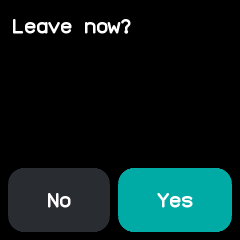
battletime ask shows the question with Yes and No on the watch, using the bundled
Prompt app. It prints yes and exits 0, or prints no and exits 1; with no
tap in time it closes the question and exits 2, and it exits 3 when it cannot ask at all. That makes
it handy in scripts:
battletime ask "Deploy now?" && ./deploy.sh