QR code
Keeps up to eight QR codes made in the BattleTime companion app, such as links, text or Wi-Fi networks, so another phone can scan them from the watch.
Using it
- Open the app to see the codes listed by caption. Drag the list up and down when it is longer than the screen.
- Tap a code's caption to show it: black on white, drawn as large as fits, with its caption underneath. The screen goes to full brightness and stays on while the app is open, so a scanner reads it easily.
- Click the side button to go back from a code to the list.
- Without codes the app says to make them in the companion app.
- Codes added or changed while the app is open show the next time it opens or the screen turns on.
Screens
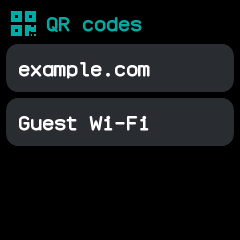
The list, one row a code: a link and a Wi-Fi network.
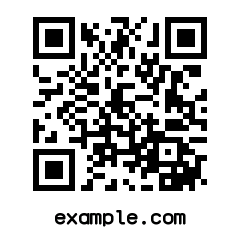
A link's code, tapped in the list, with its caption underneath.
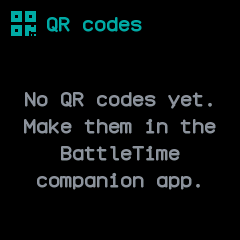
No codes yet, with a reminder to make them in the companion app.
With the companion app
- The companion app's QR code screen makes the codes. Choose what the code holds: text or a link, or a Wi-Fi network's name, security and password.
- Give it a caption of up to 24 plain characters, or keep the one suggested; it names the code in the watch's list and shows under it. An error correction level trades a denser code for one that survives more damage.
- A preview shows the code before Add to the watch puts it at the end of the watch's list. Codes too large to scan on the watch's screen are refused.
- The same screen lists the codes on the watch, to Rename them, move them Up or Down, Remove one, or Remove every code. Once the watch holds eight, remove one to add another.
- On a computer,
battletime qrdoes the same from the command line:battletime qr https://example.com --label Exampleorbattletime qr wifi Home secretadds a code, andbattletime qr list,rename,moveandremovelook after the list.