Notes, QR codes, remote and tools
These screens, under On the watch on the Watch screen, feed watch apps that get their content from the companion, and look after the watch's files.
Notes
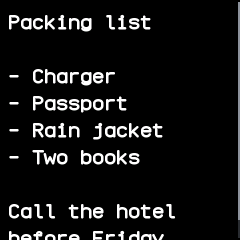
The watch's Notes app shows one note, read only, that the companion keeps up to date. On the Notes screen choose where it comes from:
- Typed here: it is sent a moment after you stop typing.
- A text file: the desktop app watches the file and sends it again within a moment of each save. On a phone the file is read again every minute.
- A web address: fetched again every minute, with optional extra headers, a login and a choice of certificate (see Web requests).
Under Text size, choose the font the watch shows it in: small, normal, medium or large. A note may be up to 64 kB. Send now sends it at once, and Clear and remove it from the watch takes it off. The companion sends the note only when it has changed, and sends it again if it was deleted on the watch.
QR codes
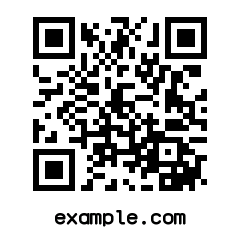
The watch's QR code app keeps up to eight codes, so another phone can scan them from the watch. On the QR code screen make one from:
- text or a link;
- a Wi-Fi network: its name, password, security and whether it is hidden. A phone's camera then offers to join it.
Give it a caption of up to 24 characters to name it in the watch's list; without one the text or the network's name is used. Below the form the screen lists the codes on the watch, each with Rename, Up, Down and Remove, and a button that removes them all. A very long text makes a code too dense to scan from the small screen; the companion warns, and refuses one that would not fit at all.
Remote
The watch's Remote app shows up to nine buttons; tapping one runs an action on the phone or computer. On the Remote screen give each button an icon, a label (shown only in the companion) and an action:
| Action | Where it runs |
|---|---|
| Web request: a method, address, headers, body and login | everywhere |
| Command: a shell command, stopped after 30 seconds | the desktop app |
| Android: open a link, start an activity or send a broadcast | the Android app |
| Media: play/pause, play, pause, next, previous, volume | the Android and desktop apps |
| Find this device: shows the same card as the watch's Finder | everywhere |
An action the device cannot run is marked unavailable. The watch only says which button was tapped; the action itself stays in the companion, so the watch can never send a command or an address. The screen keeps a log of recent taps.
Web requests
Note addresses and remote buttons share the same settings for reaching a server: extra headers, a basic-auth login, and which HTTPS certificate to trust. That is the usual check, a self-signed certificate pinned by its SHA-256 fingerprint, or any certificate. A pinned certificate is checked before anything is sent, so the headers and login never reach a server that fails it. Logins are kept unencrypted in the app's settings.
Files
Files browses the watch's file system: open folders, Download a file, Send a file here, delete files and folders, and Check free space. Changing files by hand can break an app; the other screens are the safer way to change what they look after.
Debug report
After a crash the watch waits on its crash screen. Save debug report, in the Debug report card on the Watch screen, saves why the watch last restarted, its firmware version, counters, installed apps and free storage as a file, and the watch then leaves its crash screen. Attach the file to a bug report.
Console
The Console tab shows every message line to and from the watch, and sends a line typed there as it is. It is meant for checking what the watch says, not for everyday use.